The Dashboard is your command center. It shows what’s happening right now—survey activity, recent results, and organizational progress—so you can take action quickly.
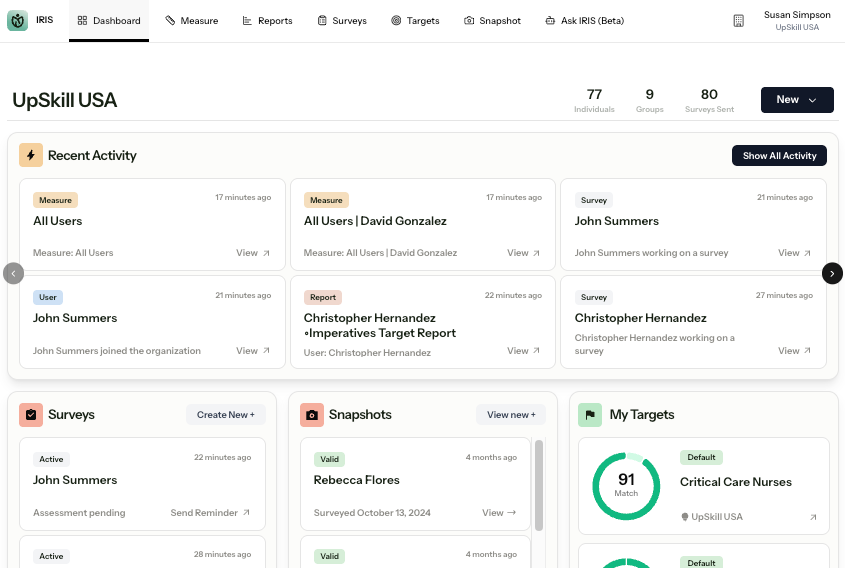
The Top Navigation
Across the top of the platform:
- Dashboard — Real-time overview of activity
- Surveys — Send surveys and monitor completion
- Measure — Explore detailed behavioral data
- Reports — Generate and download reports
- Targets — View and manage benchmarks
- Snapshots — Quick-view participant summaries
- Ask IRIS (Beta) — AI-powered insight (if enabled)
Your available sections depend on your assigned role.
What You See on the Dashboard
The layout is designed for visibility and action.
Recent Activity
Shows live system activity such as:
Survey completions
Reports generated
Measurement views
Use this to monitor engagement in real time.
Surveys Panel
Displays:
Active surveys
Recently completed surveys
Select Create New to send a survey invite.
Snapshots Panel
Shows recent Snapshot results.
Select View New to generate or access additional Snapshot views.
My Targets
Displays active organizational Targets and associated match scores.
This helps you track alignment to internal or benchmark profiles.
Organization Overview
Provides high-level metrics:
Total reports generated
Total surveys sent
Number of active targets
Total measurement views
A Survey Status chart shows:
Completed
Active
Invited
Cancelled
Use this section to quickly assess overall participation and progress.
Using the Overflow Menu (⋮)
Throughout the platform, the three-dot menu provides quick actions such as:
View Snapshot
Open Measure
Generate Report
Send Survey Invite
When in doubt, look for the three dots.
Quick Tips
Use the New button (top right) to start common actions.
If you don’t see a feature, check your assigned role.
See Roles in IRIS for permission details.
Next Steps
Send Your First Survey
Explore the Measure Section
Manage Users and Groups
Was this article helpful?
That’s Great!
Thank you for your feedback
Sorry! We couldn't be helpful
Thank you for your feedback
Feedback sent
We appreciate your effort and will try to fix the article