You can edit and personalize your default survey invitations and survey reminders in the Organization Settings.
Use this option when you want to:
Set default personalization settings with variables
Edit the provided template
Restore to the default template
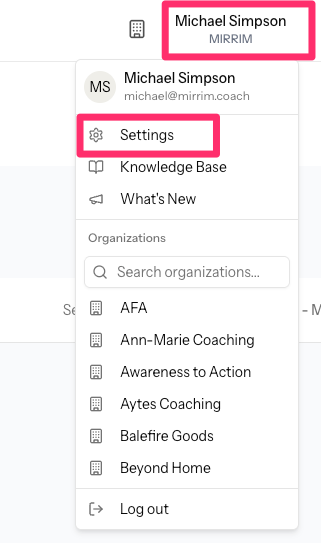
Step 1: Navigate to Settings on the top menu
Log in to the IRIS portal and click your own name at the top right, then click Settings
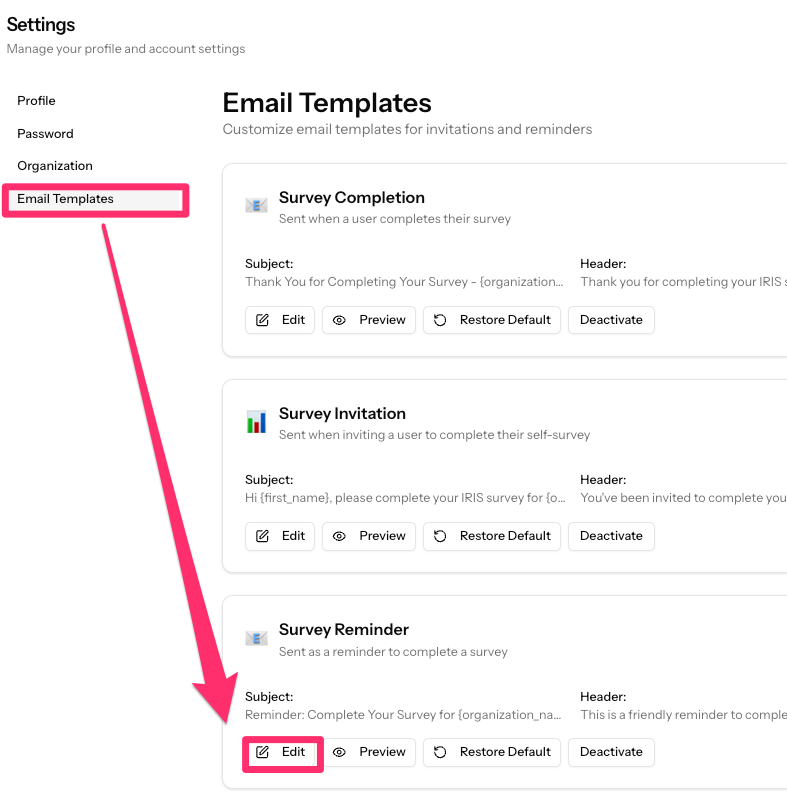
Step 2: Go to Email Templates
Select Email Templates
Click Edit on the template you want to change
 Make the changes you want. Explore Variables you can use, or just type something simple that can be used for everyone without variables to keep it simple.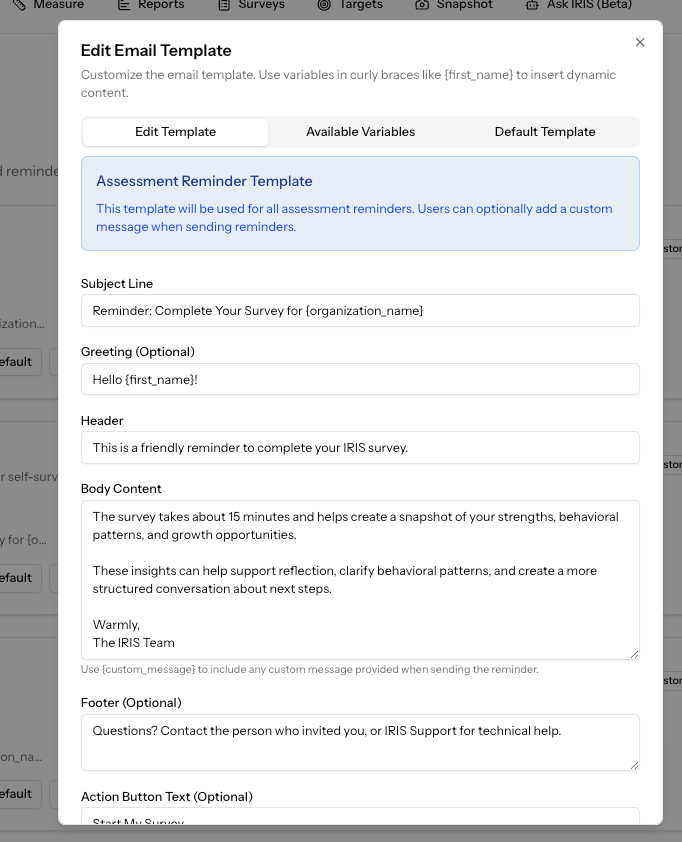
- Don't forget to click Save Changes at the bottom right of the window
- After saving, click Preview to check your work
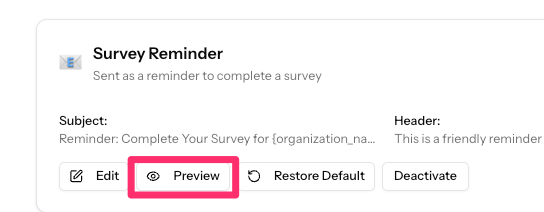
6. Then send yourself a survey that uses that template to test. You can always delete the survey afterwards to not clutter up your account
Was this article helpful?
That’s Great!
Thank you for your feedback
Sorry! We couldn't be helpful
Thank you for your feedback
Feedback sent
We appreciate your effort and will try to fix the article