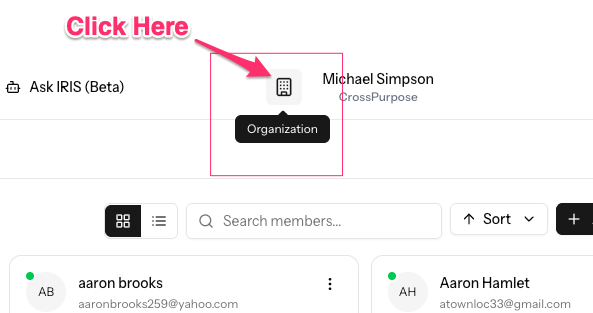
Click on the Building icon (Organization) to the left of your name.
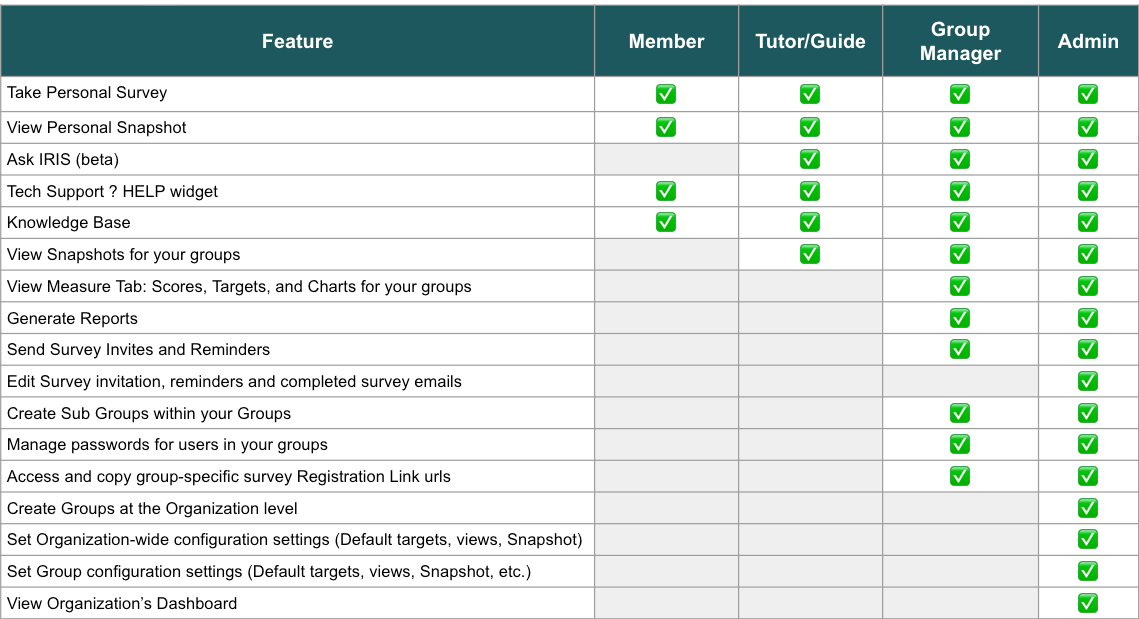
Groups help you organize members in IRIS by cohort, department, program, or class so participants and results are easier to manage. Depending upon your role, you have different rights to create groups and where you can create them. The following chart show what rights each role has within the system.
Most organizations use groups to track things like:
- Program cohorts
- Client Types
- Leadership programs
- Teams or departments
Creating a Group
Step 1
Click Add Group.
Step 2
Complete the group details:
- (Optional) Select a Parent Group
- Enter a Group Name
- Add a Description (optional)
Click Next.
Step 3
(Optional) Assign a manager.
You may:
- Search by email
- Select from the existing list
- Skip manager assignment
Click Create Group.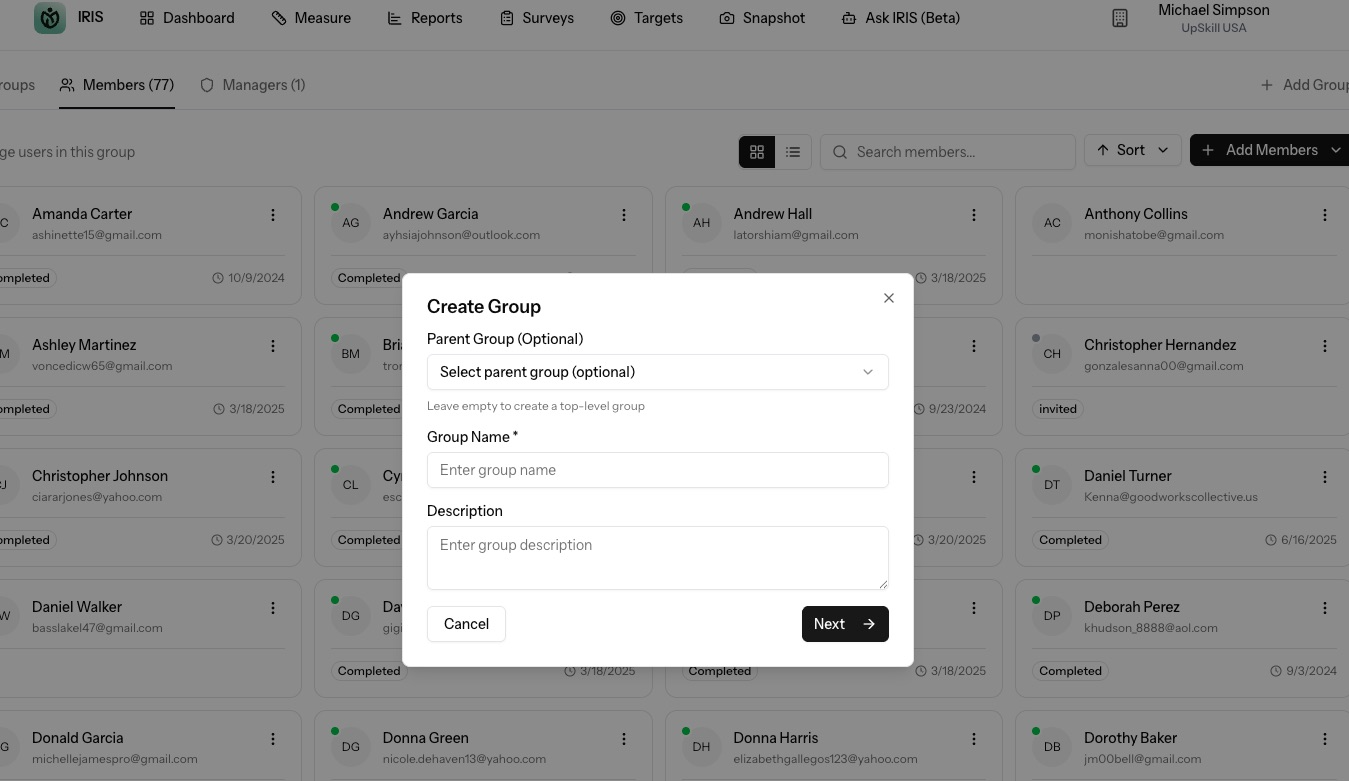
Adding a Subgroup
From within a group:
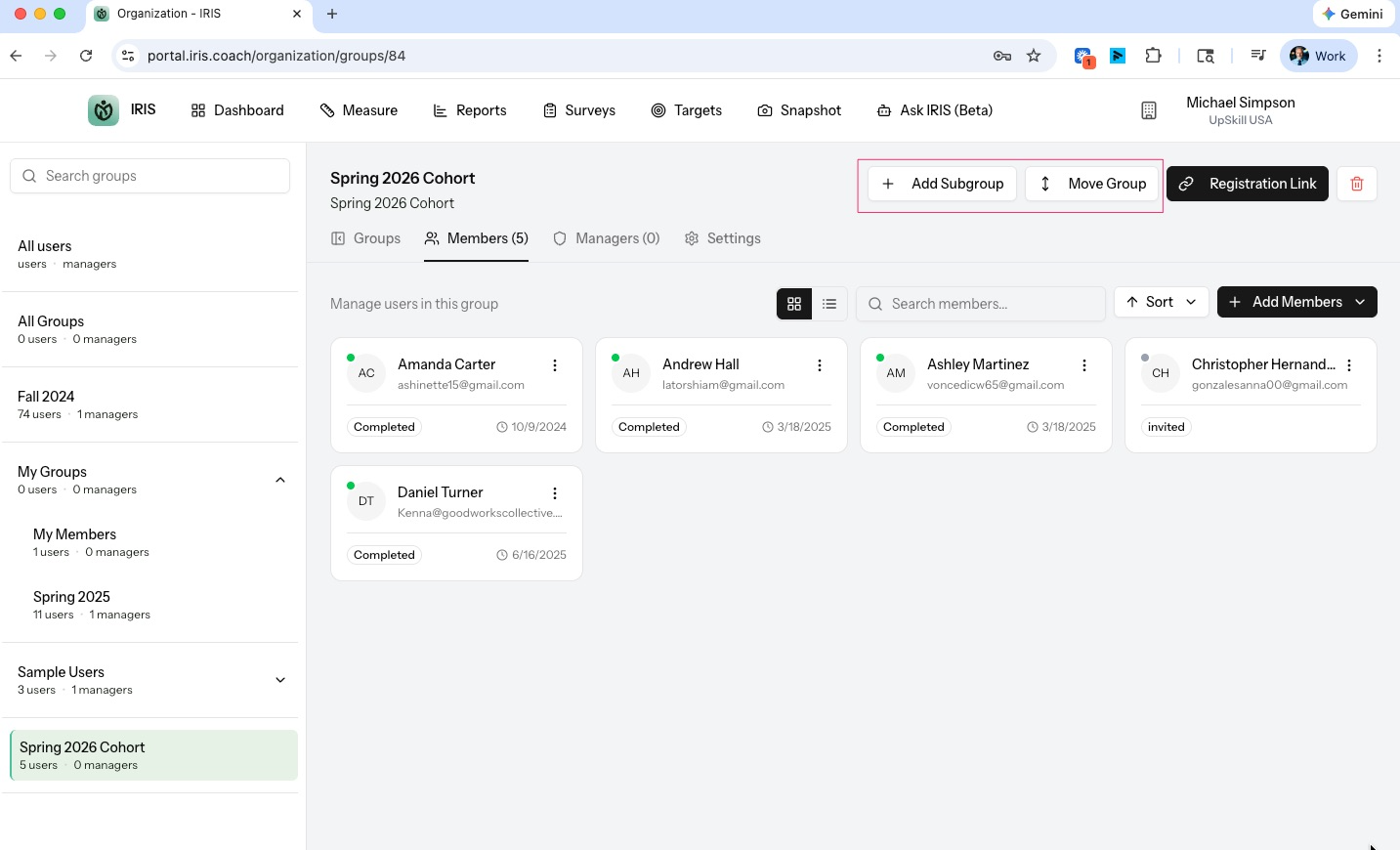
- Click Add Subgroup
- Follow the same steps used to create a group
Subgroups allow nested organization within a primary group.
Organizing Groups Effectively
As your organization grows, your group list may become longer. These simple practices help keep things manageable.
Use a consistent naming pattern
Groups are sorted alphabetically, so naming groups consistently helps keep them organized automatically.
A common structure is:
2026 – Spring Cohort
2026 – Leadership Program
2025 – Fall Cohort
Starting with the year helps groups stay organized chronologically.
Keep the structure simple
Although subgroups are available, most organizations find it best to avoid too many layers of groups.
Instead, create clearly named groups for each cohort or program.
Example:
2026 – Leadership Cohort
2026 – Internship Program
2025 – Fall Cohort
Highlight active groups
If you want active groups to appear near the top of your list, you can place a symbol at the beginning of the name:
★ Active – Spring Cohort
★ Active – Leadership Program
2026 – Spring Cohort
2025 – Fall Cohort
Because special characters appear before letters alphabetically, active groups are easy to find.
Deleting Groups
Groups can be deleted when they are no longer needed.
Deleting a group:
• Does not delete users from your account
• Does not remove their survey data or results
The group simply stops organizing those users into that particular list.
!! Tip: Many organizations periodically delete older groups once a program or cohort has finished to keep the group list clean.
Was this article helpful?
That’s Great!
Thank you for your feedback
Sorry! We couldn't be helpful
Thank you for your feedback
Feedback sent
We appreciate your effort and will try to fix the article