This guide walks you through how to send your first IRIS survey.
There are two ways to send a survey:
Send via System Email — best for individual invitations
Send via Direct Link (URL) — best for sending to many participants at once
Both methods deliver the same survey experience. The difference is how access is distributed.
Before You Begin
Make sure you:
Are logged in at https://iris.coach
Have permission to invite participants
Know whether the participant should be assigned to a specific group
Option 1: Send via System Email (Recommended for Individuals)
Use this method when:
You are inviting one person at a time
You want the system to send the email automatically
You want to track the invitation status directly
Steps:
Navigate to Surveys in the top navigation.
(Optional) Select the appropriate group from the dropdown.
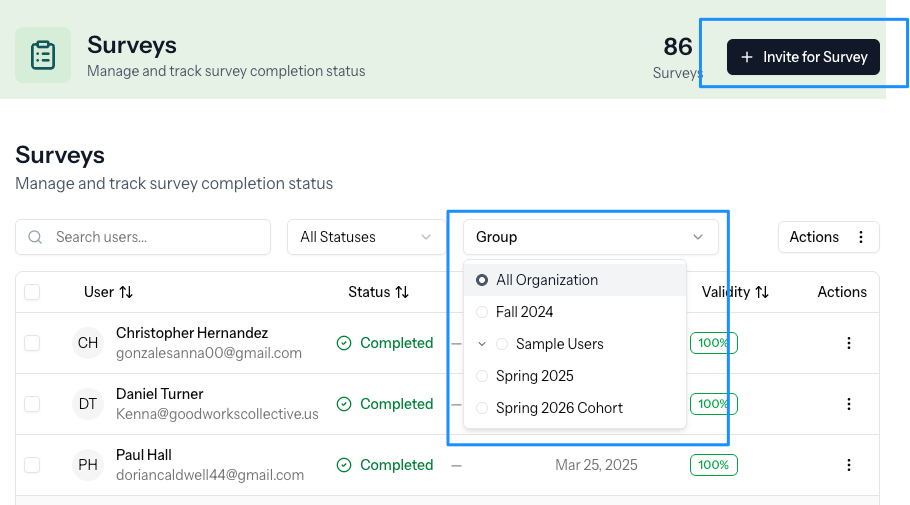
Click Invite for Survey.
Enter the participant’s name and email address.
Select Create User.
Confirm Invite for Survey to send the email invitation.
The participant will receive a secure email with a link to complete the survey.
You can monitor progress from the Surveys list.
For detailed instructions and screenshots, see: Sending a Survey via System Email
Option 2: Send via Direct Link (Best for Groups)
Use this method when:
You are sending to many participants at once
You want to email or text the link yourself
You are embedding the survey in another platform
You are facilitating a live or proctored session
With this method, you share a survey URL rather than have the system send individual invitations.
For setup steps and best practices, see: Sending a Survey via Direct Link
After the Survey Is Completed
Once a participant completes the survey:
Results become available in your account.
You can view results via Snapshot, Measure, or generate reports.
You may invite them to survey again later to track growth over time.
Next step:
Viewing and Interpreting Results
Was this article helpful?
That’s Great!
Thank you for your feedback
Sorry! We couldn't be helpful
Thank you for your feedback
Feedback sent
We appreciate your effort and will try to fix the article