This method sends a secure survey invitation directly from the IRIS platform to a participant’s email address.
Use this option when you want to:
Track invitations automatically
Manage survey status inside IRIS
Resend reminders if needed
Step 1: Navigate to Surveys
Log in to the IRIS portal and select Surveys from your dashboard.
Step 2: Add the Participant
Select Invite to Survey.
Enter the participant’s name and email address.
Select the appropriate group (if applicable).
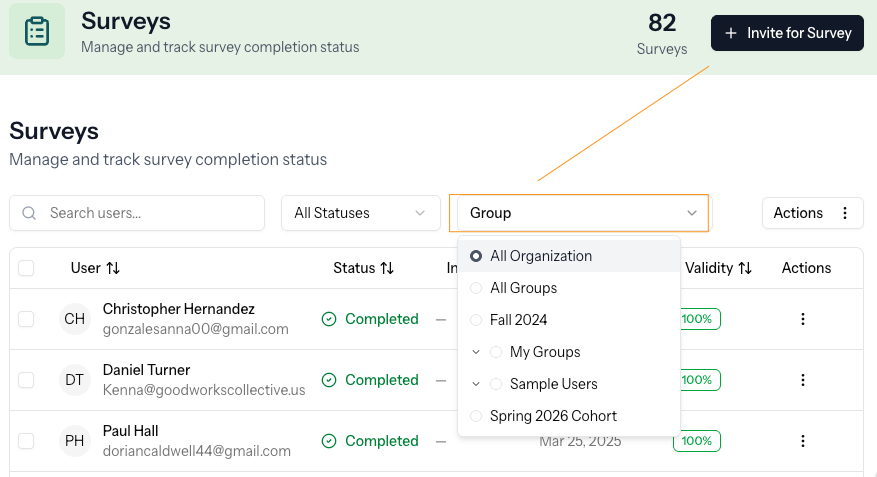
Confirm Invite to Survey is selected.
Select Create User.
The participant will receive a secure email invitation with a link to complete the survey.
Tracking Progress
Survey status appears in the Surveys list. Common statuses include:
Invited — Email sent; survey not yet started
Active — Survey in progress
Completed — Survey finished
Opted Out — Participant declined
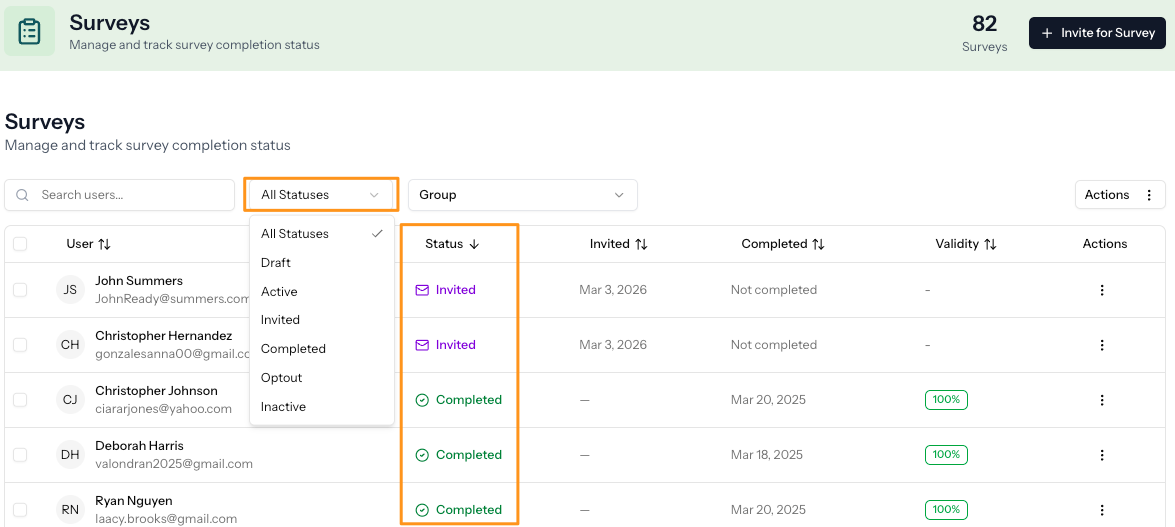
You can resend an invitation at any time by selecting the overflow menu (⋮) next to the participant’s name and choosing Send New Survey Invite.
If the participant’s status is Completed, selecting Send New Survey Invite will:
Start a new survey instance
Allow the participant to complete the survey again
Preserve previous results for historical comparison (if your system supports this)
This is useful when tracking growth over time.
When to Use This Method
System email invitations are recommended when:
Surveying individuals
Managing ongoing coaching relationships
Tracking completion closely
Maintaining controlled distribution
Was this article helpful?
That’s Great!
Thank you for your feedback
Sorry! We couldn't be helpful
Thank you for your feedback
Feedback sent
We appreciate your effort and will try to fix the article